Simple Fixes to Make Your Slow Phone Run Faster

I was sitting at my desk last Tuesday, trying to log a quick data entry task before a meeting, when my phone decided to take a literal nap in my hand. I tapped a simple app, and instead of opening, I got that agonizing, spinning loading icon—the digital equivalent of staring at a blank wall. It’s infuriating. Most “experts” will tell you that you need to drop $1,000 on the latest flagship model just to get decent performance, but honestly, that’s a total scam. You don’t always need new hardware; usually, you just need to figure out how to speed up your phone by stripping away the digital bloat that’s choking your processor.

I’m not here to give you a list of useless “cleaner” apps that actually just drain your battery more. My goal is to give you a systems-based approach to reclaiming your device’s speed. I’ve spent way too many hours digging through settings and analyzing background processes to find what actually moves the needle. We’re going to focus on high-impact, low-effort tweaks that clear the clutter and let your tech work for you, not against you. No fluff, no expensive upgrades—just practical optimization that works.

Table of Contents

Cut the Clutter With Smarter Smartphone Storage Management

Cut the Clutter With Smarter Smartphone Storage Management

Most people treat their phone storage like a junk drawer—they just keep shoving things in until something eventually stops working. But here’s the reality: when your storage hits that 90% threshold, your device starts struggling just to perform basic tasks. Effective smartphone storage management isn’t about being a minimalist; it’s about making sure your hardware isn’t choking on its own data. I’ve learned that if you don’t proactively manage your files, you’re essentially forcing your processor to work twice as hard just to find a tiny bit of breathing room.

A quick win I always recommend is to clear phone cache for your heavy hitters—think Instagram, TikTok, or Chrome. These apps hoard temporary data like digital hoarders, and clearing them out can instantly fix a lagging mobile device without you having to delete a single precious photo. While you’re at it, take a look at your “Large Attachments” in your messaging apps. We’ve all got those endless threads of memes and videos we don’t need. Cleaning these out isn’t just about space; it’s about reducing the overhead on your system so everything feels snappy again.

Clear Phone Cache to Remove the Digital Friction
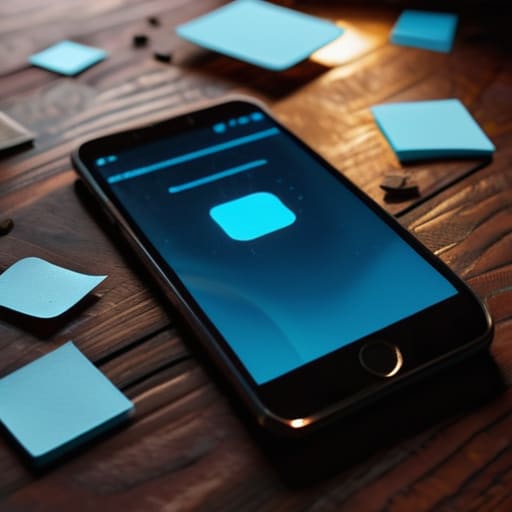
Clear Phone Cache to Remove the Digital Friction.

Think of your phone’s cache like a desk that’s been covered in sticky notes, old coffee cups, and random scraps of paper. Over time, these little bits of temporary data—images, scripts, and files meant to help apps load faster—actually start to pile up and create massive friction. When your system has to sift through all that digital junk just to perform a simple task, things start to drag. To clear phone cache effectively, you don’t need to go on a deep-cleaning spree of your entire OS; you just need to target the heavy hitters like your browser, social media apps, and streaming services.

I’ve noticed that when I ignore this, my phone starts feeling heavy and unresponsive. It’s not just about the storage space, though; it’s about the processing power. When you clear out that accumulated bloat, you’ll often notice a direct link between a cleaner system and better battery life and speed correlation. It’s one of those small, low-effort wins that makes a massive difference in how your device actually feels in your hand. It’s not about being a perfectionist; it’s just about removing the unnecessary drag so your tech stays out of your way.

5 More Ways to Kill the Lag and Reclaim Your Speed

  • Stop letting background apps steal your CPU. Go into your settings and aggressively manage background app refresh. If an app doesn’t need to be pinging a server every five seconds while your phone is in your pocket, kill that permission. It saves battery and keeps your processor focused on what you’re actually doing.
  • Audit your home screen and ditch the “widget bloat.” I know, seeing the weather, your calendar, and your stocks all at once looks productive, but every live widget is a tiny resource drain. Stick to a minimalist setup; if you need the info, swipe to the widget page, but don’t let them run constantly in the background.
  • Turn off those useless animations. This is a classic systems engineering trick: reducing the visual overhead. In your developer options (or accessibility settings), scale down the window and transition animations. It won’t technically make your chip faster, but it makes the UI feel instant because you’re cutting out the “fluff” between taps.
  • Update your OS, but don’t just blindly click “install.” Check the patch notes first. Sometimes a major update fixes stability issues, but occasionally a new OS version is too heavy for older hardware. Aim for the sweet spot: stay current enough to be secure, but don’t install a massive system overhaul if your hardware is already struggling to keep up.
  • Manage your “System Services” and location settings. We’re constantly leaking data and processing power to GPS and location services. Set your apps to “While Using” instead of “Always.” It limits how often the phone has to wake up the hardware to ping a tower, which keeps everything running much leaner.

The Bottom Line

Look, we’ve covered a lot of ground here. From aggressively managing your storage to clearing out that invisible digital friction in your cache, the goal wasn’t to turn you into a full-time IT technician. It was about implementing a few high-leverage tweaks that stop your device from dragging you down. By trimming the excess and managing your data more intentionally, you’re not just making your phone faster; you’re actually reducing the micro-frustrations that eat away at your focus throughout the day. It’s about building a system where your tech serves you, rather than the other way around.

At the end of the day, your phone is just a tool—it shouldn’t be a source of stress. I’ve spent way too much time in my life fighting against clunky interfaces and lagging hardware, and I promise you, life is much better when your tools just work the way they’re supposed to. Don’t feel like you have to do everything at once. Just pick one of these habits, get it running smoothly, and reclaim a little bit of that mental bandwidth. We aren’t chasing some impossible standard of digital perfection; we’re just aiming for frictionless efficiency so you can get back to the things that actually matter.

Frequently Asked Questions

Is it actually worth getting a new battery if my phone is lagging, or is it just a software issue?

Honestly, it’s a toss-up, but check your battery health first. If your capacity is below 80%, your phone might be “throttling”—basically, the software intentionally slows down the processor to prevent the aging battery from crashing. If your battery is shot, a new one can feel like a total hardware reset. But if your health is fine and it’s still lagging? It’s likely just software bloat. Don’t buy hardware until you’ve cleared the digital clutter.

Will deleting all my apps really make a noticeable difference, or am I just overthinking it?

Honestly? It’s a bit of both. If you’re sitting on fifty apps you haven’t touched since 2022, then yeah, deleting them makes a massive difference. It’s not just about storage; it’s about reducing background processes and notifications that eat your battery and mental bandwidth. But if you’re talking about deleting your core tools, you’re just overthinking it. Focus on the “ghost apps”—the ones stealing resources while you aren’t looking. That’s where the real win is.

How much of this slowdown is just my phone being old versus actual settings I can change?

It’s a mix of both, honestly. There’s no denying that hardware ages—batteries degrade and processors struggle with newer, heavier OS updates. That’s the physical reality. But a huge chunk of that “old phone” feeling is actually just software friction. If your storage is maxed or your background processes are running wild, a three-year-old phone can feel like a decade-old brick. Let’s figure out if you need a new device or just better settings.

Do factory resets actually fix everything, or am I just creating more work for myself?

Look, a factory reset is the nuclear option. It’s the ultimate way to wipe away years of digital sludge and software glitches that basic cleaning just can’t touch. It will fix most performance issues, but it’s a massive time sink. If you haven’t backed up your data or synced your settings, you’re just trading a slow phone for hours of tedious setup. Try the smaller tweaks first; don’t reach for the reset button unless you’re truly desperate.

Essential Steps to Safeguard Your Online Accounts

I remember sitting at my desk at 2 AM, staring at a frozen screen and feeling that cold, sinking pit in my stomach when I realized my primary email had been breached. It wasn’t some high-tech Hollywood hack; it was just a simple, preventable slip-up. Most people think learning how to keep your accounts secure requires a degree in cybersecurity or a massive budget for fancy software, but that’s just noise. Honestly, the industry loves making this stuff sound impossibly complex because complexity sells subscriptions. In reality, most of the “advanced” security advice out there is just a way to make you feel like you’re failing if you aren’t running a private server in your basement.

I’m not here to sell you on expensive digital fortresses or overwhelm you with jargon. My goal is to strip away the nonsense and give you a few low-friction systems that actually work in the real world. I’m going to show you how to lock down your digital life using tools you probably already have, focusing on sustainable habits rather than perfection. Let’s get your security sorted so you can stop worrying about it and get back to what actually matters.

Table of Contents

The Lazy Persons Guide to Password Manager Benefits

The Lazy Persons Guide to Password Manager Benefits

Look, I get it. The idea of managing another app feels like just one more thing on your plate. But if you’re still using “Password123” or—even worse—the same variation of your dog’s name for every single site, you’re basically leaving your front door unlocked in a bad neighborhood. The real password manager benefits aren’t just about security; they’re about mental bandwidth. Instead of that frantic, mid-morning scramble to remember if you used a capital letter or a special character, you just let the software do the heavy lifting. It’s about offloading the cognitive load so you can actually focus on your work.

Think of a password manager as your personal digital vault. It generates those long, nonsensical strings of characters that are nearly impossible to crack, which is your first line of defense in preventing identity theft online. When you pair this with a solid two-factor authentication setup, you’re creating a system that works even when you’re too tired to think. You don’t need to become a cybersecurity expert to stay safe; you just need to stop relying on your own memory and start using a tool that was actually built for this.

Securing Digital Identity Without the Constant Headache

Securing Digital Identity Without the Constant Headache

Look, I get it. The idea of “securing your digital identity” sounds like a full-time job that nobody actually applied for. But here’s the thing: you don’t need to live in a bunker or change your passwords every Tuesday to stay safe. Most of the heavy lifting actually comes down to a single, slightly annoying step that pays massive dividends: two-factor authentication setup. I used to skip it because I hated typing in a code every time I logged into my bank or email, but once I realized it’s the single most effective way to stop a stranger from hijacking my life, the minor inconvenience became a non-issue.

Think of it as a deadbolt for your digital existence. Even if someone manages to guess a password, they’re still stuck outside because they don’t have that physical token or app notification on your phone. Beyond that, keep a sharp eye out for the “too good to be true” emails. Most people don’t get hacked by masterminds; they get caught by a well-timed phishing attack that looks just like a legitimate login prompt. If you can master that one layer of defense, you’re already doing better than 90% of the people online. It’s not about being a tech genius; it’s just about building a few low-effort barriers that make you a much harder target.

5 Low-Effort Wins to Bulletproof Your Digital Life

  • Turn on MFA (Multi-Factor Authentication) for everything that matters. I know, it’s an extra five seconds of tapping an app on your phone, but it’s the single biggest deterrent for hackers. If you can only do one thing today, make it this.
  • Stop reusing passwords. I used to think I was being efficient by using the same “strong” password for everything, but that’s just creating a single point of failure. If one site gets breached, they have the keys to your whole kingdom. Let your password manager handle the heavy lifting here.
  • Audit your “Logged In” sessions once a quarter. Every few months, go into your Google, Meta, or banking settings and hit “log out of all other sessions.” It’s a quick digital spring cleaning that kicks out any ghost devices you forgot were still connected.
  • Treat your email like a high-security vault. Your email is the master key to every “forgot password” link in existence. If someone gets into your inbox, they own your life. Use a unique, massive password for your email and never, ever share it.
  • Beware of the “Urgency Trap.” If you get a text or email saying your account is locked and you need to click a link immediately—breathe. That’s a classic social engineering tactic. Don’t click. Instead, close the tab, open your browser, and log in manually through the official site to check the status.

The Bottom Line

Look, I know this stuff feels like just another chore on an endless to-do list, but it really boils down to three things: a solid password manager, turning on MFA whenever you actually can, and keeping your digital footprint lean. You don’t need to become a cybersecurity specialist or spend your weekends auditing every single app on your phone. By setting up these few automated systems, you’re essentially building a digital moat around your life. It’s about moving from a state of constant, low-level anxiety to a place where you can actually trust your tools instead of constantly fearing them.

At the end of the day, my goal isn’t to turn you into a paranoid tech hermit; it’s to help you build a foundation that lets you focus on your actual life. We aren’t chasing some impossible standard of total digital invulnerability—that doesn’t exist. We are just building systems that work so that a single leaked password doesn’t derail everything you’ve worked for. Grab your notebook, pick one thing from this list to implement today, and let that be enough. You’ve got better things to do with your mental bandwidth than worrying about your login credentials.

Frequently Asked Questions

If I use a password manager, do I still need to worry about two-factor authentication, or is that overkill?

Look, I get it—adding another layer feels like overkill when you’ve already solved the password problem. But here’s the reality: a password manager is your first line of defense, not your only one. If a hacker somehow gets into your vault, 2FA is the deadbolt that keeps them out. Think of it like this: the manager handles the complexity, while 2FA provides the peace of mind. It’s not extra work; it’s just smart redundancy.

What happens if I lose access to my phone or my master password—am I just locked out of my entire life?

The short answer? Yes, you could be. But that’s exactly why we build systems with redundancies. If you lose your phone or forget that master password, you’re looking at a massive headache, not a total blackout. This is why I always insist on printing out your emergency recovery codes and tucking them into that physical notebook I mentioned. Treat those codes like your house keys—keep them offline, safe, and ready for when things go sideways.

How do I know which password managers are actually trustworthy and not just another data leak waiting to happen?

Look, I get it. The idea of putting all your eggs in one digital basket feels terrifying. To cut through the noise, don’t just look at marketing hype; look for “Zero-Knowledge Architecture.” This means the company literally cannot see your data, even if they wanted to. Stick to the industry standards—think Bitwarden or 1Password. They undergo regular third-party audits, which is the gold standard for proof that their systems actually hold up.

I have dozens of old accounts I don't even use anymore; should I bother securing them or just delete everything?

Look, I get the impulse to just nuking everything. It feels like digital decluttering, right? But honestly, don’t waste your mental bandwidth trying to secure accounts you don’t even care about. If an account is dead to you, just delete it. If you can’t delete it, at least change the password to something random in your manager and walk away. Don’t let old, dusty logins become a chore you’re constantly trying to manage.

A Beginner’s Guide to Picking the Right Home Technology

I remember sitting on my floor three years ago, surrounded by three different smart hubs, a tangled mess of proprietary charging cables, and a smart bulb that refused to connect to my Wi-Fi. I had spent a small fortune trying to build a “seamless” ecosystem, but instead, I’d just built a second job for myself. Most people think the secret to a modern living space is buying the newest, most expensive gadget on the market, but they’re wrong. When it comes to learning how to choose tech for your home, the real goal shouldn’t be to own everything—it should be to own things that actually work without requiring a degree in systems engineering just to dim the lights.

I’m not here to walk you through a spec sheet or push some influencer’s favorite brand. My goal is to give you a practical framework to filter out the noise so you can stop fighting your devices and start using them. I’ll show you how to prioritize reliability over hype and how to build a setup that serves your routine rather than complicating it. We aren’t aiming for a futuristic showroom; we’re just aiming for a home that feels less chaotic.

Table of Contents

Prioritizing User Friendly Home Gadgets Over Gimmicks

Prioritizing User Friendly Home Gadgets Over Gimmicks

I’ve spent way too many late nights troubleshooting a “smart” lightbulb that refused to connect to my Wi-Fi, and honestly, it felt like a massive waste of mental energy. We’ve all seen those flashy gadgets that promise to revolutionize your life but end up being nothing more than expensive paperweights that require ten different apps just to function. When I’m looking at new gear, I skip the hype and focus on user-friendly home gadgets that actually solve a problem without adding a new one to my to-do list. If a device doesn’t have a seamless setup process, it’s probably not worth the headache.

The real trick is looking past the bells and whistles and checking for smart home ecosystem compatibility before you even hit “add to cart.” There is nothing more frustrating than buying a high-end device only to realize it won’t talk to the rest of your setup. I try to build my environment around a single, cohesive framework so that everything works in harmony rather than acting like a bunch of digital strangers living under the same roof. Don’t buy tech just because it looks cool on a tech influencer’s desk; buy it because it actually fits into the rhythm of your day.

Mastering Smart Home Ecosystem Compatibility Without the Headache

Mastering Smart Home Ecosystem Compatibility Without the Headache

This is where most people trip up. You buy a brilliant smart lightbulb, a high-tech thermostat, and a sleek security camera, only to realize they all want to live in different digital universes. If your lights only talk to Apple and your locks only talk to Google, you haven’t built a smart home—you’ve just built a collection of expensive, isolated silos. To avoid this, you need to prioritize smart home ecosystem compatibility from day one. Before you click “buy,” decide on your primary hub. Whether you’re deep in the iOS ecosystem or prefer the flexibility of Matter-enabled devices, stick to a single “language” as much as possible.

I’ve learned the hard way that a fragmented setup leads to “app fatigue,” where you’re tapping through five different interfaces just to dim the lights and lock the front door. Instead of chasing every shiny new gadget, focus on integrating smart devices that share a common protocol. It’s much more efficient to have one reliable command center than a dozen conflicting ones. If you can’t make them talk to each other seamlessly, they aren’t actually making your life easier; they’re just adding more digital noise to your mental bandwidth.

My 5-Step Filter for Cutting Through the Tech Noise

  • Audit your actual friction points first. Before you look at a single product page, grab that notebook of mine and write down the three things in your daily routine that feel most chaotic. If a smart device doesn’t directly solve one of those specific headaches, it’s just more digital clutter you don’t need.
  • Prioritize “set and forget” over “constant engagement.” The best tech is the stuff you don’t have to think about. If a gadget requires you to open an app every single time you want to use it, it hasn’t actually optimized your life—it’s just added another notification to your mental load.
  • Check the “offline” fallback. I’ve seen too many people get locked out of their own homes or unable to turn on a light because the Wi-Fi blinked. Always ask: “Does this still work if my internet goes down?” If the answer is no, reconsider the purchase.
  • Build for longevity, not the hype cycle. I’m a systems guy, and I hate inefficient loops. Don’t buy the cheapest version of a smart plug just because it’s on sale; buy the one that has a proven track record of stability. Replacing cheap, buggy tech every six months is the opposite of optimization.
  • Respect your own bandwidth. Every new device is a new entry point for data collection and potential troubleshooting. If adding a smart toaster means you’re spending your Sunday afternoon debugging firmware updates instead of actually relaxing, the trade-off isn’t worth it.

Cutting Through the Noise

At the end of the day, picking home tech shouldn’t feel like a second job. We’ve talked about moving past the shiny gimmicks that just add clutter, making sure your devices actually talk to each other through a single ecosystem, and focusing on tools that solve real problems rather than creating new ones. If a gadget requires a twenty-minute tutorial just to turn on a lightbulb, it’s not an optimization; it’s a liability. Stick to the basics: prioritize compatibility, demand simplicity, and always ask yourself if this device is actually going to save you mental bandwidth or just eat it up.

I know it’s tempting to want the most cutting-edge, futuristic setup possible, but remember that your home is supposed to be your sanctuary, not a testing lab for unproven software. My goal isn’t to help you build a museum of high-tech toys; it’s to help you build a space that supports your life. Don’t let the pursuit of the “perfect” smart home become another source of digital fatigue. Just focus on building systems that work for you, one small, intentional upgrade at a time. You’ve got this.

Frequently Asked Questions

How do I know if a new gadget is actually going to save me time or if it's just going to be another device I have to manage?

Before you hit “buy,” run a quick mental stress test: Does this gadget solve a recurring friction point in my day, or am I just buying it because the demo looked cool? If it requires a new app, a separate login, or more than two taps to actually do its job, it’s not a tool—it’s a chore. If it doesn’t automate a task I currently do manually, it’s just more digital noise.

Is it worth investing in expensive, high-end smart tech right away, or should I start small with cheaper alternatives?

Look, I get the temptation to go all-in on the flagship gear, but don’t do it. My advice? Start small. Think of it like building a mechanical keyboard—you wouldn’t buy the most expensive switches before you even know if you like the layout. Buy a few entry-level, reliable devices first. Figure out where the friction points actually are in your daily routine before you sink a massive chunk of your paycheck into high-end tech that might just become expensive clutter.

How much privacy am I actually sacrificing when I start bringing more connected devices into my living space?

Look, I’m not going to tell you that your smart lightbulbs aren’t sending some data back to a server. They are. You’re trading a slice of your privacy for convenience. But there’s a spectrum here. There’s a massive difference between a smart speaker listening for a wake word and a cheap, no-name security camera from a random site that has zero transparency. My rule? If the device doesn’t have a clear privacy policy or two-factor authentication, keep it out of your house.

What’s the best way to handle tech that becomes obsolete in a couple of years without feeling like I've wasted money?

Look, the “planned obsolescence” trap is real, and it sucks. My rule of thumb? Buy for the long game, not the hype. Focus on hardware that’s modular or has a solid track record of software updates. If a gadget is hyper-niche or tied to a single, unproven platform, skip it. I’d rather invest in one high-quality, versatile tool that lasts five years than three cheap ones that end up in a junk drawer by next Christmas.

Must-have Free Apps You Should Install Today

I spent most of my early twenties feeling like my phone was a digital leash rather than a tool. Every time I opened an app, I felt like I was losing a piece of my focus to some algorithm designed to keep me scrolling. I realized that most people aren’t actually using their devices to get ahead; they’re just reacting to the noise. I started hunting for the best free apps that actually serve a purpose—tools that work for me, instead of the other way around. I wanted to find that sweet spot where technology actually reduces my mental load rather than adding to the chaos.

In this post, I’m stripping away the bloat and sharing the eight specific tools that have become non-negotiable in my daily workflow. These aren’t just random suggestions; they are the exact apps I use to manage my projects, guard my time, and keep my brain from feeling fried by 5 PM. I’m going to show you how to build a lean, functional digital ecosystem without spending a single cent. If you’re tired of the clutter and just want a system that actually works, let’s dive in.

Table of Contents

Notion for Everything

Organizing productivity with Notion for Everything.

I used to have a dozen different apps for notes, tasks, and project tracking, but it was a total mess. Notion changed that for me because it’s basically a digital Lego set. You can build exactly the system you need, whether it’s a simple grocery list or a complex database for tracking my mechanical keyboard builds.

Todoist for Daily Wins

Using Todoist for Daily Wins task management.

While Notion is my heavy lifter, Todoist is what I use to actually survive the day. I need something that feels snappy and lets me dump a task into my phone before I forget it. Its natural language processing is killer—I can just type “Email the landlord every Friday at 10am” and it’s done.

Forest for Deep Work

My biggest struggle is definitely my phone. It’s way too easy to pick it up for a “quick check” and realize forty minutes have vanished into a social media void. Forest turned my focus into a game. You plant a virtual tree, and if you leave the app to check Instagram, your tree withers and dies.

Google Calendar for Time Blocking

If it isn’t on my calendar, it basically doesn’t exist. I stopped using simple to-do lists and started using time blocking instead. I don’t just write “work on report”; I carve out a specific two-hour block in Google Calendar. This forces me to be realistic about how much I can actually accomplish in a day.

Obsidian for Brain Dumps

Sometimes my thoughts are too messy for a structured database. That’s when I pull out Obsidian. It’s a markdown-based note-taking app that works locally on your device, which appeals to my inner systems engineer. It allows me to create a web of interconnected ideas rather than just a flat list of files.

Splitwise for Financial Sanity

Living in a city means constant shared expenses—rent, utilities, or just that dinner with friends. I used to dread the “who owes what” conversation, but Splitwise makes it completely frictionless. It takes the awkwardness out of money because the math is handled by the app, not by me.

Canva for Non-Designers

I’m an analyst, not a graphic designer, but there are times when I need to make a presentation or a quick social post look professional. Canva is my go-to for when I need something to look actually good without spending three hours fighting with Photoshop.

Pocket for Information Diet

We are constantly bombarded with articles, long-form essays, and deep dives. Instead of letting them clutter my open tabs—which is a recipe for anxiety—I send them straight to Pocket. It lets me curate a reading list that I can tackle when I actually have the headspace for it.

The Bottom Line

Look, I didn’t list these eight apps because I want you to spend your entire afternoon tweaking settings or color-coding folders. That’s just another form of procrastination. The goal here is simple: use these tools to automate the boring stuff—like managing your tasks, tracking your spending, or clearing your mental clutter—so you can stop playing catch-up. Whether you’re leaning into a heavy-duty task manager or just using a simple note-taking app to dump your brain before bed, the point is to build a foundation that actually holds up when your day gets chaotic. Pick one or two that feel intuitive and ignore the rest for now.

At the end of the day, these apps are just digital tools, not magic wands. You can have the most optimized setup in the world, but if you aren’t mindful of how much screen time you’re actually consuming, you’re still losing the battle. I’ve learned through plenty of trial and error that the best system is the one that eventually becomes invisible. Use these apps to reclaim your focus, then have the discipline to put the phone down and actually live your life. We aren’t trying to win a productivity competition; we’re just trying to clear enough space to focus on what actually matters.

Frequently Asked Questions

Are these apps actually free, or are they just going to hit me with a "pro version" subscription after three days?

Look, I get it. I’ve been burned by the “free trial” trap more times than I’d like to admit. Most of these are genuinely free for what we actually need. A few have “Pro” tiers for power users—think cloud syncing or advanced automation—but for a solid, daily workflow, you won’t hit a paywall. I’m not interested in bloated subscriptions; I just want tools that work without demanding my credit card every week.

Will adding all these new tools just end up creating more digital clutter and more things for me to manage?

Honestly? If you just download them and leave them sitting there, yeah, you’re just adding to the noise. That’s the trap. My rule is simple: don’t add a tool unless it solves a specific friction point in your current workflow. Treat these apps like pieces of a mechanical keyboard—they only matter if they actually improve the experience. If a tool feels like “work” just to maintain, delete it. Keep the stack lean.

Do these apps play nice together, or am I going to spend all my time manually syncing data between them?

Look, if you’re manually copying and pasting data between apps, you’ve already lost the war against friction. I’m all about systems, not busywork. Most of these tools play pretty well together through basic integrations or tools like Zapier, but I don’t expect a perfect, seamless ecosystem out of the gate. My rule of thumb? If an app doesn’t have a way to export data or connect to a central hub, it’s probably not worth the mental overhead.

Which one should I actually start with if I'm feeling completely overwhelmed by my current workflow?

Honestly? Start with the one that targets your biggest point of friction. If your brain feels like it has fifty tabs open, go with a task manager to get everything out of your head and into a system. If it’s your digital clutter, grab a note-taking app. Don’t try to implement all eight at once—that’s just more noise. Pick one, set it up in ten minutes, and let it do the heavy lifting.

Understanding Vpns: Are They Really Necessary?

I was sitting in a crowded coffee shop last week, trying to knock out some systems documentation, when I saw a guy next to me staring at a “Top 10 VPN” listicle that looked like it was written by a marketing bot. It was all buzzwords about “unbreakable encryption” and “military-grade security,” but not a single sentence that actually explained what is a vpn in a way that made sense for a normal person. Honestly, the tech industry loves to wrap simple concepts in layers of unnecessary jargon just to justify a monthly subscription, and it’s exhausting.

I’m not here to sell you on a specific brand or drown you in technical white papers. My goal is to strip away the fluff and give you a practical understanding of how this tool actually fits into your digital life. I’m going to break down the mechanics of a VPN without the hype, focusing on what it actually does for your privacy and how to spot the services that are just wasting your bandwidth. We aren’t aiming for a PhD in cybersecurity here; we’re just building a system that works for your everyday routine.

Table of Contents

Demystifying Virtual Private Network Technology

Demystifying Virtual Private Network Technology illustration.

To understand how a VPN actually functions, try to stop thinking about complex code and start thinking about a private tunnel. Normally, when you browse the web, your data is out in the open, traveling from your device directly to the website or service you’re using. This makes you vulnerable, especially when you’re dealing with public wifi security risks at a coffee shop or an airport. A VPN steps in and creates an encrypted internet connection that wraps your data in a layer of protection, making it unreadable to anyone trying to snoop on your activity.

The second piece of the puzzle is ip address masking. Every time you go online, your device broadcasts a digital fingerprint—your IP address—which reveals your general location and identity. When you use this technology, your traffic is routed through a remote server owned by the VPN provider. To the rest of the internet, it looks like you’re browsing from that server’s location rather than your actual home or office. It’s a simple way to reclaim your online privacy and security without needing a degree in systems engineering to set it up. It’s about building a digital perimeter that stays out of your way while doing its job.

How a Vpn Works Without the Complexity

How a Vpn Works Without the Complexity

Think of it this way: normally, when you browse the web, your data travels in an open, readable format from your device straight to the website you’re visiting. It’s like sending a postcard through the mail—anyone handling it can technically see what you wrote. When you use a VPN, you’re essentially putting that message into a tamper-proof armored car before it even leaves your driveway. It creates an encrypted internet connection that wraps your data in a layer of code that’s virtually impossible for outsiders to crack.

Once that data is inside the “tunnel,” the VPN handles the heavy lifting of IP address masking. Instead of your actual location and identity being broadcast to every server you touch, the web sees the VPN server’s information instead. This is a massive win for online privacy and security, especially if you’re someone who frequently works from coffee shops or airports. We’ve all heard about the public wifi security risks, and honestly, it’s one of those things you shouldn’t ignore. Using a VPN simplifies the process of staying anonymous, letting you focus on your work rather than worrying about who might be lurking on the same network.

5 Ways to Use a VPN Without Making It a Chore

  • Use it as your default for public Wi-Fi. Whether you’re grabbing a coffee or working from a library, treat a VPN like a digital seatbelt—it’s a small habit that keeps your data from being exposed to anyone else on the same network.
  • Stop the “targeted ad” loop. By masking your IP address, you’re essentially making it harder for advertisers to build a creepy, hyper-specific profile of your browsing habits. It’s about reclaiming a bit of your digital privacy.
  • Access your “home” internet from anywhere. If you’re traveling and find that certain sites or services are blocked or acting weird because of your location, a VPN lets you virtually teleport back home so your digital life stays consistent.
  • Pick a provider that doesn’t log your data. This is the big one. A VPN is useless if the company itself is keeping a detailed diary of everything you do. Look for a “no-logs” policy—it’s the only way to ensure the system actually works for you.
  • Automate the connection. Don’t rely on your own memory to turn it on every time you open your laptop. Set your VPN to “Auto-connect” on launch so the protection is already there before you even start your workday.

Cutting Through the Noise: Final Thoughts

At the end of the day, a VPN isn’t some magic shield or a complex piece of spy gear; it’s just a practical layer of defense for your digital life. We’ve covered how it masks your IP, encrypts your data, and helps you bypass those annoying regional restrictions that make the internet feel smaller than it actually is. You don’t need to be a systems engineer to understand that securing your connection is just good digital hygiene. Whether you’re jumping on public Wi-Fi at a coffee shop or just want to reclaim a bit of privacy from your ISP, the goal is simple: minimizing your digital footprint so you can browse without looking over your shoulder.

I know that adding another subscription or another tool to your workflow can feel like just more “noise” to manage. But I look at it like my mechanical keyboards—sometimes you need the right components to make the system run smoothly and reliably. Don’t get bogged down in the endless specs or the marketing hype. Just pick a reputable service, set it to auto-connect, and let it do its job in the background. My advice? Stop overthinking the tech and start focusing on your flow. Life is too short to spend it fighting your own tools; get the right setup, and then get back to what actually matters.

Frequently Asked Questions

Will using a VPN actually slow down my internet speed when I'm trying to work or stream?

The short answer? Yes, it probably will—but it’s usually not a dealbreaker. Think of it like a detour on your commute; you’re taking a slightly longer route to stay safe, so it adds a bit of time. The “lag” comes from the encryption process and the distance to the server. If you’re using a high-quality provider, the hit to your speed is negligible. If it’s dragging, just switch to a closer server.

Is a free VPN actually safe, or am I just trading one privacy problem for another?

Honestly? Most of the time, you’re just trading one privacy problem for another. Think about it: running a VPN server costs money. If you aren’t paying for the service with your credit card, you’re likely paying with your data. I’ve seen too many “free” apps scrape your browsing habits to sell to advertisers just to keep the lights on. If you want to protect your bandwidth, stick to a reputable paid service. It’s worth the few bucks to actually sleep better.

Do I need a VPN for everything, or is it only necessary when I'm using public Wi-Fi?

Look, the short answer is: you don’t need one for every single thing you do, but it’s not just about public Wi-Fi. If you’re on your home network, you’re mostly fine. But if you value privacy from your ISP or want to bypass regional blocks, keeping it on is a smart default. Think of it as a baseline layer of protection. It’s less about constant danger and more about building a consistent, secure system.

Can a VPN help me access content that's blocked in my current location?

Short answer: Yes, absolutely. That’s one of the most common reasons I use one.

A Guide to Finding a Great Phone Without Breaking the Bank

I was sitting in a coffee shop last Tuesday, watching a guy stare at a spec sheet like it was some sacred text, sweating over the difference between two slightly different processor architectures. It was painful. We’ve been conditioned to believe that picking a mobile device is some high-stakes engineering exam, but honestly? Most of that marketing noise is just there to drain your bank account. If you’re spending hours comparing megapixels and refresh rates that you won’t even notice in your daily workflow, you’re doing it wrong. Learning how to choose the right phone shouldn’t feel like a second job; it should be about finding a tool that disappears into your life rather than one that demands constant troubleshooting.

I’m not here to sell you on the latest flagship or some overhyped ecosystem. My goal is to strip away the technical jargon and give you a functional framework based on how you actually live. I’m going to show you how to audit your own digital habits so you can stop overpaying for features you’ll never touch. We aren’t looking for the most powerful device on the planet—we’re just looking for a system that works for you.

Table of Contents

A Smartphone Operating System Comparison for Real Life

A Smartphone Operating System Comparison for Real Life

When you’re looking at a smartphone operating system comparison, don’t get bogged down in the marketing fluff about “ecosystems.” That’s just code for how much they want to lock you into their walled garden. For me, it comes down to how the software actually feels when I’m trying to get things done. iOS is incredibly polished and predictable, which is great if you want something that just works without you having to tinker under the hood. Android, on the other hand, is for the people who want to customize everything—it’s perfect if you like tweaking your interface to match your specific workflow.

But here’s the thing: the OS dictates how much friction you’ll face daily. If you’re already deep in the Apple ecosystem with a Mac or iPad, switching to Android might feel like learning to drive on the wrong side of the road. However, if you value freedom and hardware variety, Android is the way to go. I’ve realized that the best OS is the one that stays out of your way so you can focus on your actual tasks rather than fighting with your settings. It’s not about which one is technically superior; it’s about which one fits your existing digital habits without causing a headache.

Mobile Processor Performance Benchmarks Without the Jargon

Mobile Processor Performance Benchmarks Without the Jargon.

Look, I spent way too much time in college staring at spreadsheets, and if there’s one thing I’ve learned, it’s that nobody actually cares about raw numbers unless they translate to real-world speed. When you see people arguing over mobile processor performance benchmarks, they’re usually just throwing around scores from Geekbench or AnTuTu like they’re holy scripture. But here’s the reality: a high score doesn’t matter if your phone starts thermal throttling and lagging the second you open a heavy app or try to edit a video.

Instead of obsessing over the specific nanometer architecture, ask yourself how you actually use your device. Are you a power user jumping between heavy multitasking and high-end gaming, or are you just someone who needs a phone that stays snappy while scrolling through emails and Slack? If you’re on a tight budget, you don’t need the absolute fastest chip on the market; you just need one that doesn’t make your life feel sluggish. For most of us, finding the sweet spot between a capable chip and efficient power consumption is the real goal. It’s about ensuring your hardware supports your workflow rather than becoming another thing you have to manage.

My 5-step filter for cutting through the marketing noise

  • Audit your actual usage before looking at specs. Do you spend four hours a day on spreadsheets and email, or are you mostly scrolling through heavy video feeds? If you’re a heavy multitasker, prioritize RAM and a decent processor; if you just need a reliable tool for communication, don’t overpay for a chip you’ll never actually stress out.
  • Prioritize battery longevity over “fast charging” hype. A phone that charges in 20 minutes is useless if the battery drains by 2 PM because the software isn’t optimized. I always look for real-world battery tests rather than manufacturer claims—you want a device that survives your longest days, not just one that fills up quickly.
  • Don’t fall for the “megapixel trap.” A high number on a spec sheet doesn’t mean a good photo; it just means a big file. Focus on how the software handles light and motion. If you care about photography, look at reviews of the actual image processing, not just the hardware numbers.
  • Consider the “ecosystem friction.” Think about how much energy you’ll waste trying to move files between your laptop, your tablet, and your phone. If you’re already deep in one ecosystem, switching might feel like a “fresh start,” but the technical friction of moving your data and habits often outweighs the excitement of new hardware.
  • Factor in the “longevity lifecycle.” I hate buying tech that becomes a paperweight in two years. Check how many years of OS updates the manufacturer actually guarantees. A slightly more expensive phone with five years of support is a much better investment for your mental bandwidth than a cheap one that starts glitching after twelve months.

The Bottom Line

At the end of the day, choosing a phone isn’t about finding the device with the highest numbers on a spreadsheet; it’s about finding the tool that disappears into your daily routine. We’ve looked at how OS ecosystems dictate your workflow, how processors handle your actual multitasking, and why those spec sheets can be so misleading. Don’t get caught in a loop of trying to find the “perfect” device that hits every single benchmark. Instead, focus on the friction points in your current setup. If your battery dies by 3 PM or your interface feels like a cluttered mess, prioritize those fixes. A phone is only as good as its ability to serve your lifestyle without requiring constant troubleshooting.

My philosophy has always been about building systems that work for you, not the other way around. Your smartphone should be an extension of your intent, a quiet engine that helps you navigate the world, not a source of digital fatigue or constant frustration. Stop chasing the hype cycles and the incremental upgrades that promise the moon but deliver very little. Once you settle on a device that meets your core needs, close the tabs and move on. The goal isn’t to own the most advanced piece of tech on the planet—it’s to own your time and your focus. Use your tech to live, not just to consume.

Frequently Asked Questions

Is it actually worth paying the premium for a flagship model, or can I get 90% of the same experience with a mid-range phone?

Here’s the truth: unless you’re a mobile gamer or a content creator, you’re usually paying for the last 10% of “prestige” and polish. For most of us, a mid-range phone is the sweet spot for optimization. You get the essential speed and battery life without the massive price tag. Don’t chase the flagship status symbol; just find the device that handles your daily workflow without breaking your budget or your sanity.

How much does battery life actually matter if I’m always near a charger, and how do I spot a "fake" battery claim?

Look, if you’re a desk warrior who’s always plugged in, you can probably prioritize a thinner design over a massive battery. But if you’re commuting or traveling, a dead phone is just more mental friction you don’t need. To spot fake claims, ignore the “mAh” number for a second. Instead, look for real-world reviews that test screen-on time. If a brand only talks about capacity and never about actual usage hours, that’s a red flag.

Should I care about camera megapixels, or is there something else I should be looking at to avoid blurry, unusable photos?

Forget the megapixel chase. Honestly, chasing a massive number is a trap that leads to bloated files and zero actual quality. If you want to stop taking blurry shots, look at sensor size and optical image stabilization (OIS). A larger sensor captures more light—which is everything—and OIS physically compensates for your shaky hands. Don’t buy a spec sheet; buy a phone that can actually handle a low-light dinner without turning your memories into a grainy mess.

How long is a phone actually going to stay "current" before the software updates stop and it starts feeling slow?

Look, the “spec sheet” lifespan is a lie. If you want a device that doesn’t become a paperweight in two years, aim for the sweet spot: 3 to 4 years. Most flagship brands now promise longer, but reality hits when the battery degrades or apps get heavier. I don’t buy for the launch day hype; I buy for the three-year mark. If it can’t handle basic multitasking by year four, it’s failed the system.

The Easiest Ways to Move Files Between Devices

I was sitting at my desk last Tuesday, surrounded by three different screens and a half-disassembled mechanical keyboard, when I realized I’d spent forty minutes just trying to move a single project folder from my laptop to my tablet. It’s one of those moments where you realize your “smart” ecosystem is actually just a collection of digital silos fighting against you. We’ve been sold this lie that everything is “seamlessly integrated” in the cloud, but when you actually need to know how to transfer files between devices without a subscription or a massive headache, the reality is usually just a mess of broken links and slow upload speeds.

I’m not here to sell you on some expensive, proprietary ecosystem or a bloated software suite that promises the world. My goal is much simpler: I want to give you the actual workflows that work for me, stripped of the marketing fluff. I’ve tested the cables, the cloud services, and the local network hacks so you don’t have to. By the end of this, you’ll have a few battle-tested systems to move your data quickly, letting you get back to the work that actually matters.

Table of Contents

Fastest Way to Move Large Files Without the Lag

Fastest Way to Move Large Files Without the Lag

If you’re trying to move a massive 4K video folder or a bloated project directory, skip the wireless stuff. I’ve tried various wireless file sharing methods when I’m feeling lazy, but once you hit a certain file size, the connection starts stuttering, and you’re just sitting there watching a progress bar crawl. It’s a massive drain on your mental bandwidth. For anything substantial, a direct USB cable file transfer is still king. It’s old school, sure, but the stability and raw speed of a wired connection mean you aren’t fighting your hardware halfway through the process.

When you’re dealing with heavy lifting, I always look for the path of least resistance. If you can’t plug in, your next best bet is utilizing a high-speed external SSD. It’s a physical bridge that bypasses the bottleneck of your local Wi-Fi. I’ve found that relying solely on cloud storage synchronization for massive files is a recipe for frustration; you’re at the mercy of your upload speed, which is usually the weakest link in the chain. If you want the fastest way to move large files without the lag, stop relying on the airwaves and go with a physical connection. It’s about choosing the right tool for the specific job.

Wireless File Sharing Methods That Actually Work

Wireless File Sharing Methods That Actually Work

If you’re tired of hunting for a specific dongle every time you need to move a photo, wireless is the way to go. For most of my daily workflows, I lean heavily on cloud storage synchronization. It’s the ultimate “set it and forget it” system. Whether it’s Google Drive or iCloud, having your files live in the ether means they’re just there when you switch from your laptop to your phone. It’s not the fastest way to move massive 4K video files, but for documents and casual shots, it eliminates the friction entirely.

The real headache usually starts when you’re dealing with different ecosystems—specifically transferring data between Android and iPhone. We’ve all been there, staring at a screen wondering why the native tools feel like they’re working against us. If AirDrop or Quick Share isn’t cutting it, don’t waste an hour troubleshooting. I usually just pull up a browser-based service like Snapdrop or use a dedicated messaging app to send the file to myself. These cross-platform file sharing tools are lifesavers because they don’t care what OS you’re running; they just get the job done so you can get back to your actual work.

My Go-To Rules for Keeping File Transfers Painless

  • Audit your files before you start. Don’t waste bandwidth moving old screenshots or junk files you’ll never open again; clean your folder first so you’re only moving what actually matters.
  • Check your connection stability. If you’re doing a massive transfer, plug into Ethernet or stay close to the router—nothing kills my momentum like a file transfer hanging at 99% because the Wi-Fi flickered.
  • Use a dedicated “Transfer Folder.” Instead of hunting through a messy directory, move everything into one single, clearly named folder before you start the process. It makes the “arrival” side much easier to manage.
  • Verify the integrity of the transfer. Once it’s done, spot-check a few large files to make sure they aren’t corrupted. It takes ten seconds and saves you an hour of troubleshooting later.
  • Automate the repetitive stuff. If you find yourself moving the same types of files every week, set up a cloud sync or a script. Stop doing manual labor for tasks that a system should be handling for you.

Cutting Through the Digital Noise

At the end of the day, transferring files shouldn’t feel like a chore or a technical puzzle you’re destined to lose. Whether you decided to go with a high-speed physical connection to bypass the lag or opted for a seamless wireless method to keep things light, the goal is the same: minimizing friction. I’ve learned through my own obsession with systems that the “best” method isn’t always the most expensive one; it’s simply the one that fits your current workflow without causing a mental bottleneck. Pick the tool that matches your specific task, set it up once, and stop overthinking the process.

We spend so much of our lives fighting against our own tools, losing precious minutes to loading bars and incompatible formats. My advice? Don’t let these small technical hurdles become the reason you lose your momentum. Use these methods to clear the digital clutter, get your data where it needs to be, and then get back to the work that actually matters. We aren’t trying to build a perfect, seamless digital universe here—we’re just trying to build systems that work for us, instead of the other way around. Now, go reclaim your time.

Frequently Asked Questions

What’s the safest way to move sensitive files without worrying about security leaks?

If you’re moving anything sensitive—think tax docs or private work files—skip the cloud and the random USB sticks you found in a drawer. The gold standard is an encrypted external drive or a local transfer via a physical cable. If you absolutely have to use the internet, use a service with end-to-end encryption. Basically, if the data isn’t encrypted before it leaves your device, it’s not truly safe. Don’t cut corners on security.

How do I transfer stuff if I’m stuck using a Mac and a Windows PC at the same time?

The “cross-platform struggle” is real. I used to lose so much mental bandwidth just trying to get a simple folder from my Mac to my PC. Honestly, skip the complicated cloud setups if you’re moving a lot of data. Grab a physical external SSD—it’s the most reliable “analog” solution in a digital world. Just make sure you format it to ExFAT so both systems can actually read it without throwing an error.

Are cloud services actually worth the monthly subscription just for file transfers?

Honestly? It depends on your “file friction.” If you’re just moving a few PDFs once a month, a subscription is a total waste of mental and financial bandwidth. Stick to a physical drive or a quick wireless transfer. But, if you’re constantly jumping between a laptop and a tablet for work, that seamless sync is worth the cost. It’s not about the storage; it’s about buying back the time you’d spend manually moving files.

What should I do if my transfer keeps freezing halfway through a big folder?

There is nothing more frustrating than watching a progress bar hit 50% and just… stop. If your transfer keeps freezing, stop trying to move the whole folder at once. It’s likely a single corrupted file or a momentary connection hiccup killing the entire process.

Securing Your Files Using Cloud Storage

Ever had that sinking feeling in your gut when you’re staring at a “Disk Full” notification, knowing that one crucial file—the one you actually need right now—is buried somewhere in a digital graveyard? I’ve been there, usually at 2 AM, frantically digging through nested folders while my mechanical keyboard clicks away in a rhythm of pure anxiety. Most people think learning how to use cloud storage means paying for a massive monthly subscription and letting some tech giant organize their life for them, but that’s a total lie. In reality, most of us are just paying for digital clutter that we can’t even find when it matters most.

I’m not here to sell you on a premium ecosystem or a complex enterprise setup that requires a degree to navigate. My goal is to strip away the bloat and show you how to build a system that actually works for your specific workflow. I’m going to walk you through the practical, no-nonsense ways to structure your files so you can stop fighting your devices and start reclaiming your mental bandwidth. Let’s get your digital life organized without the headache.

Table of Contents

Cloud Storage vs Hard Drive Finding Your Real Flow

Cloud Storage vs Hard Drive Finding Your Real Flow

I used to be a total physical drive maximalist. I had these external SSDs plugged into my setup like they were life support, convinced that if I couldn’t touch the hardware, my data wasn’t “real.” But honestly? It was a massive friction point. If I was working from a coffee shop and realized I left my drive sitting on my desk at home, my entire workflow hit a brick wall. When comparing cloud storage vs hard drive setups, it really comes down to how much you value mobility versus absolute local control.

The cloud wins on pure convenience because of automatic file synchronization. I love being able to start a spreadsheet on my desktop, make a quick edit on my phone while waiting for a train, and have it just be there when I get back to my laptop. It removes that mental tax of wondering if you’re working on the latest version. However, I’m not saying ditch the hardware entirely. I still keep a physical drive for my most sensitive, “off-the-grid” archives. The sweet spot for me is using the cloud for my active, daily projects so I can stay fluid, while using local drives as a secondary safety net.

Automatic File Synchronization Letting the System Do the Work

Automatic File Synchronization Letting the System Do the Work

If you’re still manually dragging and dropping folders every time you finish a project, you’re essentially fighting your own workflow. That’s the opposite of what we’re trying to do here. The real magic happens when you set up automatic file synchronization. Once you’ve picked a provider, you want to configure your local folders so that any change you make on your laptop is instantly reflected on your desktop or phone. It’s about removing the “mental tax” of remembering to hit upload; the system just handles it in the background while you focus on actual work.

This is where syncing files across devices becomes a game-changer for your productivity. I personally use this to bridge the gap between my workstation and my mobile setup. If I jot down a quick note or save a spreadsheet on my way to a meeting, I know it’ll be waiting for me when I sit down at my desk. It turns your digital environment into one continuous workspace rather than a bunch of isolated islands. Just a quick heads-up: always double-check your sync settings to ensure you aren’t accidentally downloading massive, unnecessary files to your phone and eating up your data. Keep it lean, keep it automated, and let the software do the heavy lifting.

5 Ways to Stop Your Cloud from Becoming a Digital Junk Drawer

  • Stop the “Dump and Forget” habit. I used to just toss everything into my Drive and hope for the best, but that’s how you end up with a digital landfill. Create a basic folder hierarchy—think “Work,” “Personal,” and “Archive”—and actually stick to it. If you can’t find a file in three clicks, your system is broken.
  • Use a naming convention that actually makes sense. “Final_v2_REALLY_FINAL.pdf” is a nightmare. I use a simple YYYY-MM-DD_ProjectName_Description format. It makes the search bar your best friend instead of your biggest enemy.
  • Audit your “Shared with Me” clutter. We’ve all been there—someone sends you a link, you open it, and it sits in your cloud forever. Every few months, I go through and remove myself from old shared folders or files I no longer need. It keeps your workspace clean and your mental bandwidth high.
  • Set up an “Inbox” folder for quick captures. Sometimes I’m in a rush and don’t have time to file something properly. Instead of letting it clutter my main directories, I toss it into a single “Inbox” folder. Once a week, during my Friday brain dump, I move those files to their permanent homes.
  • Double-check your sync settings. This is a big one for me. You don’t always need every single file synced to your laptop—that just eats up your hard drive and slows everything down. Set your most important projects to “available offline,” but let the heavy, rarely-used stuff live strictly in the cloud.

Getting Your Digital Life in Order

At the end of the day, using cloud storage isn’t about hoarding every single digital scrap you’ve ever created; it’s about building a system that actually supports your workflow. We talked about why you shouldn’t rely solely on a physical hard drive and how setting up automatic synchronization can take the mental load off your plate. When you stop manually moving files around and start letting the system handle the heavy lifting, you stop fighting your tools and start actually using them. It’s about moving from a state of digital clutter to a state of intentional organization.

I know it feels overwhelming to set everything up, especially when your current folder structure looks like a digital junk drawer. But remember, we aren’t aiming for some flawless, Pinterest-perfect filing system. We’re just looking for a setup that works so you can stop wasting time searching for that one PDF you know you saved somewhere. Take it one step at a time, build your system, and then get back to the work that actually matters. Your future, less-stressed self will definitely thank you for it.

Frequently Asked Questions

How do I keep my files private so I’m not worried about some random hack or data leak?

Look, the “big tech is watching” anxiety is real, but you don’t need to go full survivalist to stay safe. The move is end-to-end encryption. If your provider offers it, use it—it means even they can’t peek at your files. Also, please, for the love of everything, turn on Two-Factor Authentication (2FA). It’s a minor friction point, but it’s the single best way to stop a random hack from turning into a total nightmare.

Is it actually worth paying for extra space, or should I just stick to the free tiers?

Look, the free tier is a great sandbox, but it’s a trap if you’re actually using these tools for life. Once you hit that ceiling, the “digital friction” kicks in—you’re constantly deleting old photos just to make room for a work PDF. If you find yourself managing your storage like a game of Tetris, it’s time to pay. Think of it as buying back your mental bandwidth. Don’t let a storage limit break your flow.

What happens if I accidentally delete something—can I actually get it back?

Don’t panic—you haven’t lost it forever. Most major services like Google Drive, iCloud, or Dropbox have a “Trash” or “Bin” folder that acts as a safety net. Files usually sit there for 30 days before they’re actually gone. If you’re using a synced folder on your laptop, check your computer’s Recycle Bin too. It’s a classic system fail, but as long as you act fast, you can usually hit undo.

How do I organize everything so my cloud doesn't just become another digital junk drawer?

The “digital junk drawer” happens when you treat the cloud like a trash can instead of a filing cabinet. To fix this, you need a hierarchy, not a pile. Start with four broad buckets: Work, Personal, Finance, and Archive. Don’t overcomplicate it with fifty subfolders; you’ll never use them. Use a strict naming convention like `YYYY-MM-DD_ProjectName` so everything stays chronological. If a file doesn’t fit a bucket, it doesn’t belong in the cloud.

Tips for Creating Memorable Yet Secure Passwords

I was sitting at my desk last Tuesday, staring at a login screen that had just rejected my sixteenth attempt at a “secure” string of nonsense, when I realized something: the industry is lying to us. We’ve been told that knowing how to create a strong password means memorizing a chaotic soup of uppercase letters, symbols, and numbers that even we can’t decipher. It’s a massive, exhausting friction point that actually makes us less secure because we inevitably end up writing them on sticky notes or using the same predictable pattern for everything. It’s not optimization; it’s just digital clutter masquerading as safety.

I’m not here to give you a lecture on cybersecurity theory or suggest you buy a $50 piece of software you’ll never use. Instead, I want to show you how to build a system that actually sticks without burning out your brain. I’m going to walk you through a few low-friction methods to manage your digital life so you can stop fighting your devices and start actually using them. We aren’t aiming for a perfect fortress; we’re just aiming for a system that works.

Table of Contents

Passphrase vs Password Finding Your Flow

Passphrase vs Password Finding Your Flow guide.

Here’s the thing: most of us grew up thinking a “strong” password meant a chaotic mess of symbols, numbers, and random letters that look like a cat walked across your keyboard. We’ve all been there, staring at a screen, trying to remember if it was `P@ssw0rd123!` or `P@ssw0rd!123`. But honestly? That’s a recipe for burnout. When you’re constantly fighting password complexity requirements, you end up writing them down on sticky notes or using the same predictable pattern for everything. That’s not security; that’s just a ticking time bomb for your digital identity protection.

This is where the shift from passwords to passphrases changes the game. Instead of a single, complex word, I prefer using a string of random, unrelated words—think “correct-battery-staple-ocean”—to create a long, memorable sequence. When you look at the math, length is actually your best friend for preventing brute force attacks. A long passphrase is much harder for a computer to crack, yet it’s significantly easier for your brain to actually retain. It’s about finding that sweet spot where the system is robust enough to protect you but simple enough that you don’t need a mental reset every time you log in.

Ditch the Complexity for Systems That Work

Ditch the Complexity for Systems That Work

The problem with most advice is that it focuses on making things harder for you rather than making things harder for the hackers. We’ve all been there: staring at a login screen that demands a capital letter, a symbol, a number, and a blood sacrifice, only to realize we’ll forget the string in ten minutes. When you’re constantly fighting against arbitrary password complexity requirements, you eventually give up and start using “Password123!” for everything. That’s exactly what bad actors are counting on.

Instead of trying to memorize a chaotic mess of characters, I focus on building a repeatable framework. I use a dedicated password manager to handle the heavy lifting, which allows me to treat my digital identity protection like a background process rather than a manual chore. Once the manager is doing the storage, my only real job is to ensure I have a robust second layer of defense. This is where the multi-factor authentication benefits actually kick in; even if a rogue script manages to guess a pattern, that extra layer of verification acts as a massive roadblock. It’s about creating a system where security is a built-in feature of your routine, not an extra hurdle you have to jump over every single morning.

My Personal Cheat Sheet for Bulletproof (But Manageable) Access

  • Stop trying to be a human random number generator. Instead of forcing yourself to remember `Xj9!pL$2`, pick four unrelated words that mean something to you but nothing to a hacker—like `coffee-glitch-sunset-keyboard`. It’s way harder for a bot to crack, but way easier for your brain to visualize.
  • Treat your password manager like your external hard drive. I don’t try to memorize every single login anymore; I let a manager handle the heavy lifting. My only job is to maintain one “Master Key” that is incredibly strong, and then let the software handle the chaos.
  • The “One-Off” Rule: Never, ever reuse a password for something important. If your random pizza delivery app gets breached and you use that same password for your banking, you’re cooked. Use unique strings for every single account, period.
  • Turn on MFA (Multi-Factor Authentication) even if it feels like an extra step. It’s a minor friction point, sure, but it’s the ultimate safety net. If someone actually manages to guess your password, they still can’t get in without that second layer of verification on your phone.
  • Audit your “Legacy” accounts once a year. We all have those old forums or random shopping sites from five years ago that we don’t use anymore. If you aren’t using the account, delete it. The fewer digital doors you have standing open, the less you have to defend.

The Bottom Line

At the end of the day, securing your digital life isn’t about becoming a cybersecurity expert or memorizing a chaotic string of nonsense. It’s about moving away from the “one password to rule them all” mentality and leaning into a system that actually scales. We talked about why passphrases are your best friend for memory, why complexity shouldn’t come at the cost of sanity, and why a password manager is the ultimate operational upgrade for your brain. If you can implement even just two of these shifts—like switching to long passphrases and getting a manager—you’ve already done more than most people. You’re building a defensible perimeter without the mental burnout.

I know it feels like just one more thing to manage in an already loud digital world, but look at it this way: you aren’t just “fixing passwords,” you’re reclaiming your mental bandwidth. Every minute you spend worrying about a potential breach or struggling to reset a forgotten login is time stolen from your actual life. Stop trying to fight the chaos and start building the systems that keep the chaos at bay. You don’t need to be perfect; you just need to be consistently intentional. Set it up once, let the tools do the heavy lifting, and get back to the things that actually matter.

Frequently Asked Questions

If I’m using a password manager, do I still need to make my individual passwords super complex?

Here’s the short answer: No, you don’t need to manually craft a masterpiece every time you sign up for a new app. That’s exactly what a password manager is for.

How often am I actually supposed to change these things without driving myself crazy?

Honestly? If you’re changing your passwords every 30 days just because some legacy security prompt told you to, you’re doing too much. That’s how people end up using “Password123!” for everything.

Is it actually safe to keep a physical notebook with my passwords in it, or is that just asking for trouble?

Honestly? A physical notebook is actually safer than using “Password123” for everything. A hacker in another country can’t breach your desk drawer. The real risk isn’t digital; it’s physical. If you go the notebook route, don’t leave it sitting next to your laptop like a cheat sheet. Keep it tucked away, and maybe use a bit of “code” for the sensitive stuff. It’s about adding a layer of friction that works for you, not against you.

What’s the quickest way to tell if one of my old passwords has already been leaked in a data breach?

The quickest way is to head over to Have I Been Pwned. It’s the industry standard for a reason. You just plug in your email, and it’ll tell you instantly if your data has popped up in any known breaches. If it shows a hit, don’t panic—just treat it as a signal to update that specific password and move on. It’s a five-second check that saves a massive amount of future headache.

Ways to Ease Eye Fatigue From Too Much Screen Time

I was sitting at my desk last Tuesday, staring at a spreadsheet that felt like it was literally burning holes into my retinas, when I realized I’d spent the last four hours fighting a losing battle against my own setup. My eyes felt gritty, like someone had tossed a handful of sand under my eyelids, and my head was starting to throb in that specific, dull way that signals a looming migraine. Most “experts” will try to sell you $500 blue-light glasses or some high-tech monitor lamp to solve the problem, but honestly? That’s just more noise. If you’re looking for how to reduce eye strain from screens, you don’t need a bigger budget; you need a better system.

I’m not here to pitch you a product or give you a list of vague, academic suggestions that require a PhD to implement. My goal is to strip away the fluff and give you the actual, low-friction habits I use to keep my eyes from frying during a ten-hour shift. We’re going to focus on small, structural tweaks to your environment and your workflow that actually work. No hype, no expensive gear—just simple, actionable systems to help you reclaim your focus and stop the digital fatigue before it hits.

Table of Contents

Identifying Computer Vision Syndrome Symptoms Before They Win

Identifying Computer Vision Syndrome Symptoms Before They Win

The thing about digital fatigue is that it’s a slow burn. It doesn’t usually hit you like a lightning bolt; it’s more like a gradual fog that settles in by 3:00 PM. You might start noticing a slight tension behind your temples or realize you’re squinting at your spreadsheet just to make the numbers legible. If you’re dismissing a dull ache in your neck or a weird, gritty feeling in your eyelids as “just part of the job,” you’re actually ignoring the early warning signs of computer vision syndrome symptoms.

I used to think I was just getting older or that I needed more caffeine, but it was actually my eyes screaming for a break. You have to pay attention to the subtle cues: the sudden headache that peaks after a long Zoom call, or that feeling of intense dryness that makes you want to blink a thousand times a minute. If you find yourself rubbing your eyes constantly or struggling to focus on something far away after staring at a monitor for hours, your system is failing. Recognizing these red flags early is the only way to stop the cycle before you’re stuck with a permanent tension headache.

The Low Effort Guide to Adjusting Screen Brightness and Contrast

The Low Effort Guide to Adjusting Screen Brightness and Contrast

Look, most of us just slap our laptops on a desk and accept whatever default settings the manufacturer shoved in there. That’s a mistake. If your screen is glowing like a miniature sun in a dark room, or if it’s so dim you’re squinting just to read an email, you’re essentially forcing your eye muscles into a constant state of tension. Adjusting screen brightness and contrast isn’t about finding a “magic” setting; it’s about matching your monitor to the ambient light in your room. If the wall behind your monitor is bright, your screen should be too. If you’re working in a dimly lit corner, dial it back.

A quick hack I use when I’m deep in a spreadsheet is to check if my text looks “ghostly” or washed out. If it does, your contrast is likely off. You want high, crisp edges so your brain doesn’t have to work overtime to decode characters. While some people swear by blue light blocking glasses benefits, I find that simply getting the luminosity right does more for my immediate comfort. It’s one of those small, low-effort tweaks to your ergonomic workstation setup that actually moves the needle without requiring you to buy a bunch of expensive gear.

Five Low-Friction Tweaks to Save Your Sight

  • Stop ignoring the 20-20-20 rule. It sounds like some cliché productivity hack, but it’s actually basic maintenance. Every 20 minutes, look at something 20 feet away for at least 20 seconds. It forces your eye muscles to actually relax instead of staying locked in a permanent squint.
  • Fix your viewing distance. Most of us lean in way too close when we’re deep in a flow state, which is a recipe for disaster. Your screen should be about an arm’s length away, and the top of the monitor should be at or slightly below eye level. If you’re hunching, your eyes are paying the price.
  • Stop forgetting to blink. I know it sounds stupid, but when we focus hard on a task, our blink rate drops significantly. This dries out your eyes and makes that stinging sensation way worse. I started keeping a small physical reminder on my desk to remind me to actually blink.
  • Use blue light filters, but don’t go overboard. Most OS settings like “Night Shift” or “Night Light” are great for evening work, but you don’t need your screen looking like an old piece of parchment all day. Just dial it in enough to take the harsh edge off the light.
  • Optimize your ambient lighting. If you’re working in a dark room with a glowing monitor, you’re basically creating a spotlight effect that kills your eyes. You don’t need a massive lighting overhaul; just make sure there’s some soft, indirect light in the room so the contrast between your screen and the wall isn’t so jarring.

Stop Fighting Your Eyes

At the end of the day, we aren’t trying to build some high-tech, futuristic workstation that costs a month’s rent. It really comes down to the basics we’ve talked about: recognizing the symptoms before they turn into a headache, tweaking your brightness so you aren’t staring into a lightbulb, and actually taking those five-minute breaks to let your eyes reset. You don’t need a complex overhaul of your entire life to see a difference; you just need to stop treating your eyes like they’re invincible. Small, consistent adjustments to your environment are almost always more effective than a massive, one-time fix that you’ll eventually abandon.

I know it feels like we’re just destined to be tethered to these glowing rectangles for the next forty years, but don’t let the tools win. Your focus and your physical well-being are your most valuable assets in a world that is constantly trying to hijack both. Start with one thing—just one—and see how it feels. We aren’t aiming for a perfect, sterile setup; we’re just aiming for a system that actually works for your real, messy, digital life. Go grab some water, look out a window for a second, and reclaim your bandwidth.

Frequently Asked Questions

Does using blue light glasses actually make a difference, or is it just marketing hype?

Honestly? Most of those blue light glasses you see in targeted ads are pure marketing hype. If you’re looking for a magic fix, you’ll be disappointed. They don’t actually “cure” eye strain. For me, the real win isn’t a pair of trendy frames; it’s just using “Night Shift” mode on my devices or adjusting my lighting. Don’t waste your money on the gimmick—focus on your environment instead.

Should I be using dark mode for everything, or does that sometimes make eye strain worse?

Honestly, dark mode isn’t the magic fix everyone claims it is. If you’re in a pitch-black room, it’s great. But if you’re working in a bright office, the high contrast between a dark screen and a light room actually forces your pupils to work harder, which can trigger headaches. My rule of thumb? Match your environment. If the room is bright, stick to light mode with a warm tint. Don’t overthink it; just aim for balance.

How often am I actually supposed to be looking away from my monitor to see real results?

Look, if you’re waiting for a “perfect” schedule, you’re going to fail. Don’t overcomplicate it. Aim for the 20-20-20 rule: every 20 minutes, look at something 20 feet away for 20 seconds. If that feels too rigid for your workflow, just aim for a reset every hour. The goal isn’t to hit a metric; it’s to stop your eye muscles from locking up in a permanent stare. Just break the cycle.

Are there specific apps or system settings that can automate these adjustments so I don't have to think about them?

Honestly, you shouldn’t have to manually fiddle with settings every time the sun moves. If you’re on a Mac, just turn on “Night Shift” in your Display settings—it’s a lifesaver for evening work. For Windows, “Night Light” does the same. If you want more control, grab f.lux. It’s the gold standard for automating color temperature based on your local time. Set it, forget it, and let your eyes breathe.